Crucial

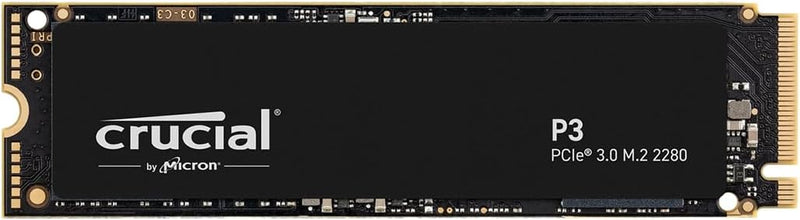
Crucial CT1000P3SSD8 1TB NVMe PCIe Gen3 SSD

4.7 (27440 reviews)
1TB NVMePCIe Gen3PCIe Gen2

Accelerate Your System with the Crucial P3 1TB NVMe SSDThe Crucial P3 NVMe SSD is designed to deliver a significant performance boost to your PC. With its PCIe Gen3 interface and NVMe technology, this SSD offers blazing-fast read and write speeds, allowing you to boot up quickly, load application...

$259.99*
Check availability

*Price sourced from Amazon.com. Last updated:May 30, 2026.Price and availability are subject to change.

Affiliate Disclosure: Studio Supplies may earn a commission from qualifying purchases made through links on this page, at no additional cost to you. This helps support our editorial team.

Notice a mistake? Let Us Know

Overview

Accelerate Your System with the Crucial P3 1TB NVMe SSD

The Crucial P3 NVMe SSD is designed to deliver a significant performance boost to your PC. With its PCIe Gen3 interface and NVMe technology, this SSD offers blazing-fast read and write speeds, allowing you to boot up quickly, load applications instantly, and transfer files in a flash. Upgrade to the Crucial P3 and experience the difference in speed and responsiveness.

Specifications

  • Capacity: 1TB
  • Form Factor: M.2 2280
  • Interface: PCIe Gen3 x4, NVMe 1.3
  • Sequential Read: Up to 3500MB/s
  • Random Read/Write: 650K/700K IOPS
  • NAND Type: 3D NAND

Key Features

Fast Everyday Performance: Delivers up to 3,500MB/s for quicker bootups, app launches, and file transfers

Spacious 1TB Capacity: Provides space for essential apps, documents, and media with efficient Gen3 NVMe performance for home users

Broad Compatibility: Works with PCIe Gen2-enabled desktops and laptops for easy system upgrades at home

Proven Durability: Built with Micron 3D NAND and rated for over 1.5 million hours MTTF for long-lasting durability

Trusted Micron Quality: Backed by one of the world’s leading flash storage manufacturers for dependable home user performance

Acronis True Image and Adobe Software Bundle Included: Comes with Acronis cloning software for easy data recovery and transfers, plus a one-month Adobe Creative Cloud All-Apps subscription for creative photo, video, 3D projects and more

Specifications

Capacity
1TB
Interface
NVMe PCIe Gen3
Sequential Read Speed
Up to 3,500MB/s
NAND Type
Micron 3D NAND
MTTF (Mean Time To Failure)
Over 1.5 million hours
Software Bundle
Acronis True Image, One-month Adobe Creative Cloud All-Apps subscription

Crucial P3 NVMe SSD (Gen3 + P3 Plus Gen4, 500GB-4TB) — Editorial Review & Use Cases

The Crucial P3 family (CT500P3SSD8, CT1000P3SSD8, CT4000P3SSD8 — PCIe Gen3) and P3 Plus family (CT500P3PSSD8, CT1000P3PSSD8 — PCIe Gen4) are Crucial's mainstream M.2 NVMe SSD lines — designed for budget-conscious PC builds + laptops needing NVMe-class speeds without enthusiast-tier pricing. Per Crucial's official P3 Plus product page, the P3 hits up to 3,500 MB/s sequential read on Gen3 (the maximum the Gen3 interface allows); the P3 Plus pushes to 5,000 MB/s on Gen4 with the same QLC NAND + DRAM-less controller architecture.

What the P3 / P3 Plus Specifically Wins

  • NVMe-class speeds at SATA-SSD price points — P3 ~$50-80 for 1TB, ~$150 for 4TB. Comparable speeds to mid-tier NVMe at substantially lower cost
  • 3,500 MB/s sequential read (Gen3) / 5,000 MB/s (Gen4) — adequate for game loading, OS boot, application launch, content playback. The difference between 3,500 and 7,000 MB/s NVMe is rarely noticeable for typical workflows
  • M.2 2280 form factor — fits standard M.2 NVMe slots on virtually all modern motherboards (Intel 8th-gen+, AMD Ryzen 1st-gen+) + laptops with M.2 slots
  • 5-year warranty — Crucial / Micron standard
  • Capacity ladder: 500GB / 1TB / 2TB / 4TB — the 4TB option is particularly compelling for large-game-library users + content creators
  • Bootable without drivers on modern systems — Windows 10/11, macOS via NVMe driver (Mac Pro 2019 / Hackintosh), Linux 4.0+ all support NVMe natively
  • Cool-running design — no aggressive sustained-load throttling at typical PC temperatures (vs some enthusiast NVMe that throttle without heatsinks)

Where the P3 / P3 Plus Specifically Fits

  • Budget gaming PC builds — fast game loading at ~50% the cost of premium NVMe
  • Mainstream desktop boot drives — Windows 11 + Office + Adobe + Steam library fits comfortably on 1-2TB
  • Laptop NVMe upgrades — modern laptops with M.2 slot benefit from NVMe over SATA (faster boot, app load, less battery drain for I/O wait)
  • Mass game / media library storage — 4TB P3 holds 50-80 modern AAA games or huge media collections
  • Console expansion (PS5 / Xbox Series X) — when paired with the appropriate heatsink, P3 Plus meets PS5's 5,500 MB/s minimum (verify per-SKU)
  • Light content creation workstations — adequate scratch drive for Lightroom + Photoshop + Premiere Pro / DaVinci Resolve at 1080p / light 4K
  • Compact ITX / Mini-PC builds — single M.2 slot use, no SATA cable clutter
  • Older PC upgrade path — Z270 / X370 motherboards with M.2 Gen3 slots see significant boot + app load improvement vs SATA SSD
  • NUC / Mini PC builds — Intel NUC / ASUS PN / Beelink mini PCs typically use single M.2 NVMe slot
  • Steam Deck expansion (P3 2230 form factor not available; standard P3 is 2280 — needs Steam Deck OLED's 2230 socket adapter)

Honest Limits Buyers Should Know

  • QLC NAND — lower endurance than TLC. 220TBW on 1TB P3 vs 600TBW on Samsung 990 PRO (TLC) at the same capacity. For typical user workloads (boot drive + games + occasional photo edit), 220TBW lasts ~10 years; heavy daily-write workloads (video edit scratch, database) deplete it faster. NOT for write-heavy enterprise workloads
  • DRAM-less design — sustained random writes throttle. Real-world: after the SLC cache (varies by capacity, typically 10-15% of total) fills, sustained writes drop to ~80-150 MB/s direct-to-QLC. For bursty workloads this is fine; for sustained large-file copies (transferring 500GB), expect significant slowdown after the first 50-100GB
  • P3 caps at PCIe Gen3 speeds. Even on Gen4 motherboards, P3 only delivers ~3,500 MB/s. For full Gen4 speeds use P3 Plus or step up to Gen4-native SSDs (WD SN850X, Samsung 990 PRO)
  • Not for PS5 without verification. PS5 requires 5,500 MB/s minimum + heatsink. Most P3 Plus 1TB SKUs meet the speed; verify the specific 4TB SKU + add heatsink (built-in PCB heatsinks not always sufficient)
  • No hardware encryption. AES-256 / OPAL hardware encryption not supported. BitLocker + FileVault work via software-only encryption (slightly slower)
  • 4K random IOPS lower than premium NVMe. P3 hits ~400K 4K read IOPS; WD SN850X / Samsung 990 PRO hit 1M+. For database / VM workloads this matters; for everyday use it doesn't
  • Thermal throttling under sustained load. Long sustained writes (multi-hour video edit renders, bulk file transfers) trigger thermal throttling at ~70°C. Heatsink mitigates; most users don't hit this
  • SLC cache size depends on capacity. Small SKUs (500GB) have small SLC cache; large SKUs (4TB) have substantial SLC cache. Higher capacities are markedly more performant under sustained writes

Where Buyers Should Look Elsewhere

  • Premium / enthusiast tier (sustained write performance) → WD Black SN850X, Samsung 990 PRO, Crucial T700 (Gen5)
  • Mid-tier balance (TLC + DRAM) → WD Black SN770, Samsung 970 EVO Plus, Kingston KC3000
  • Storage-only secondary (cheaper) → Crucial P3 (Gen3) instead of P3 Plus when boot drive is separate
  • PS5 expansion → WD Black SN850P (PS5-certified), Samsung 990 PRO with heatsink
  • Enterprise / 24/7 write-heavy → Samsung PM893 / Intel D7 / Micron 7400 PRO datacenter SSDs
  • Steam Deck (2230 form factor) → WD SN770M, Sabrent Rocket 2230, Crucial T705 2230 — verify Steam Deck compatibility
  • Cheaper SATA-class (if NVMe slot not available) → Crucial MX500 (TLC) or BX500 (QLC)

Sources & Citations

  1. Crucial, "P3 Plus NVMe SSD product page," crucial.com (accessed 2026-05-18)
  2. Tom's Hardware, "Crucial P3 / P3 Plus review and NVMe SSD comparison," tomshardware.com (accessed 2026-05-18)
  3. AnandTech, "NVMe SSD reviews and benchmark coverage," anandtech.com (accessed 2026-05-18)
  4. TechPowerUp, "Crucial P3 / P3 Plus reviews," techpowerup.com (accessed 2026-05-18)

Last verified: 2026-05-18

How to Install an NVMe SSD — Gen3 and Gen4 M.2 Guide

Installing an M.2 NVMe SSD is one of the cleanest hardware upgrades available for a desktop or laptop: no cables, a single retention screw, and the entire process takes under 20 minutes. The key preparation step is confirming the target M.2 slot's PCIe generation and key type before purchasing a drive. According to Tom's Hardware's SSD benchmark coverage, for general-purpose workloads (OS boot, application launches, file browsing) the practical improvement from any NVMe drive over a SATA SSD or HDD is substantial — and the Gen3 vs. Gen4 difference matters most in sustained sequential workloads like video editing or large file transfers, not everyday use.

Before You Begin: Slot Verification

Confirm three things from the motherboard manual before purchasing: (1) the slot supports M-key NVMe (not SATA-only M.2), (2) the PCIe generation the slot is wired to (Gen3 or Gen4 — primary slots on Intel 12th Gen+ and AMD Ryzen 5000+ support Gen4; secondary slots are often Gen3 through the chipset), and (3) whether the slot shares lanes with SATA ports that will be disabled when the M.2 slot is occupied. A Gen4 drive installed in a Gen3 slot operates at Gen3 speeds — no hardware harm, but not the rated peak performance.

Safety

Shut down fully, disconnect power (flip the PSU rocker switch on desktops), and discharge static by touching the bare metal chassis interior before handling the drive. On laptops, unplug the AC adapter and, for non-removable batteries, hold the power button five seconds after disconnecting. If the board has a built-in M.2 heatsink with a pre-applied thermal pad, peel the backing film from the pad before reinstalling the heatsink — a common oversight that leaves the drive thermally insulated by a plastic film.

Tools Needed

  • Phillips #0 or #1 screwdriver (for M.2 retention screw and desktop side panel)
  • M.2 retention screw + standoff (typically pre-installed; M2×3mm if missing)
  • Thermal pad (if board heatsink pad is damaged; usually comes pre-applied)

Quick Installation Summary

  1. Shut down, disconnect power, discharge static by touching the chassis interior.
  2. Remove any M.2 slot heatsink/shroud (typically 2–3 Phillips screws); peel thermal pad backing film if present.
  3. Remove the M.2 retention screw (and standoff if needed); confirm the standoff is at the 80mm (2280) position for standard drives.
  4. Hold the NVMe module at ~30 degrees; align the M-key notch with the slot's key ridge; slide the gold contacts fully in.
  5. Press the free end of the drive flat toward the motherboard — the drive lies at 0 degrees when correctly seated.
  6. Insert the retention screw and tighten finger-tight plus a quarter-turn. Do not overtighten.
  7. If using a board-integrated heatsink, lower it onto the drive (thermal pad contact side down) and reinstall the heatsink screws.
  8. Reassemble, reconnect power, and boot to BIOS to confirm the drive appears in the storage/boot device list.
  9. If it's a new secondary drive, initialize and format it in Disk Management (Windows) or Disk Utility (macOS) after booting to the OS.

Gen3 vs. Gen4: What Changes in Practice

PCIe Gen4 drives offer 2–2.5× higher peak sequential bandwidth than Gen3. AnandTech's Crucial P3 review and Samsung 970 EVO Plus review both document that random-access latency — which governs OS and application responsiveness — is broadly similar between Gen3 and Gen4 mid-range drives. The real-world gap widens with large sequential writes (4K+ video editing, game installs from local storage), narrows to near-zero for web browsing and productivity applications. A Gen4 drive in a Gen3 slot performs identically to a Gen3 drive in that slot; the extra headroom only matters when the slot itself is Gen4.

Troubleshooting in Brief

  • Drive not detected in BIOS: Reseat; check slot PCIe/SATA mode setting in BIOS (must be set to NVMe or Auto-NVMe); confirm slot-sharing with SATA is not disabling NVMe mode.
  • Drive detected at Gen3 speeds instead of Gen4: Check BIOS for slot PCIe gen setting; confirm the CPU supports Gen4 (Intel 11th Gen and earlier do not on consumer platforms).
  • Thermal throttling under load: Add or verify heatsink; Gen4 drives need thermal management for sustained write workloads.
  • Secondary slot slower than primary: Expected — secondary M.2 slots on most boards run through the chipset at Gen3, not direct CPU lanes at Gen4.

The full step-by-step guide with M-key vs. B-key identification, thermal pad handling, lane-sharing behavior, and extended troubleshooting is at studio-supplies.com/blogs/guides/nvme-ssd-install-gen3-gen4-guide.

Sources & Citations

  1. Crucial, "SSD Support Articles & FAQs," crucial.com (accessed 2026-05-31)
  2. Tom's Hardware, "Best SSDs for 2026," tomshardware.com (accessed 2026-05-31)
  3. AnandTech, "The Crucial P3 Review," anandtech.com (accessed 2026-05-31)
  4. AnandTech, "Samsung 970 EVO Plus SSD Review," anandtech.com (accessed 2026-05-31)
  5. Samsung, "Consumer Storage Support," semiconductor.samsung.com (accessed 2026-05-31)

Last verified: 2026-05-31

Now that you've seen the details — ready to take a closer look?

Check availability

Pros & Cons

👍 Pros

  • This SSD delivers fast everyday performance with speeds up to 3,500MB/s for quicker system responsiveness.
  • The spacious 1TB capacity provides ample room for essential applications, documents, and media files.
  • Broad compatibility ensures it works with both PCIe Gen2 and Gen3 enabled desktops and laptops, simplifying upgrades.
  • Built with Micron 3D NAND, it offers proven durability with a Mean Time To Failure (MTTF) rated over 1.5 million hours.
  • The included Acronis True Image and Adobe software bundle adds significant value for data management and creative tasks.

👎 Cons

  • The Gen3 NVMe performance, while fast, is not the latest generation and may not match Gen4 or Gen5 speeds.
  • The Adobe Creative Cloud subscription is for one month only, requiring continued payment for prolonged use.
  • While broadly compatible, optimal performance is achieved on Gen3 PCIe systems, not all older systems.
  • The 1TB capacity, though spacious for many, might be insufficient for users with very large media libraries or extensive gaming collections.
  • Specific performance metrics like IOPS (Input/Output Operations Per Second) are not provided for a full performance comparison.

Frequently Asked Questions

This Crucial SSD delivers speeds of up to 3,500MB/s for quicker bootups, app launches, and file transfers.
The Crucial CT1000P3SSD8 offers a spacious 1TB capacity for storing applications, documents, and media.
Yes, it offers broad compatibility and works with PCIe Gen2-enabled desktops and laptops, as well as Gen3 systems.
It includes Acronis True Image for data recovery and transfers, plus a one-month Adobe Creative Cloud All-Apps subscription.
The SSD is built with Micron 3D NAND and is rated for over 1.5 million hours Mean Time Between Failure (MTTF), indicating long-lasting durability.