Corsair

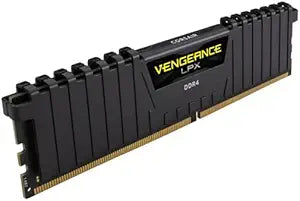
Corsair Vengeance LPX 16GB (2x8GB) DDR4 3200MHz Memory

Supercharge Your System with Corsair Vengeance LPX DDR4 Memory Corsair Vengeance LPX DDR4 memory is designed for high-performance overclocking, featuring a pure aluminum heat spreader for superior heat dissipation and an eight-layer PCB for exceptional overclocking headroom. Each IC is screened ...

Search on Amazon
Affiliate Disclosure: Studio Supplies may earn a commission from qualifying purchases made through links on this page, at no additional cost to you. This helps support our editorial team.

Notice a mistake? Let Us Know

Overview

Supercharge Your System with Corsair Vengeance LPX DDR4 Memory

Corsair Vengeance LPX DDR4 memory is designed for high-performance overclocking, featuring a pure aluminum heat spreader for superior heat dissipation and an eight-layer PCB for exceptional overclocking headroom. Each IC is screened for performance potential, ensuring reliably fast performance for your desktop.

  • Brand: Corsair
  • Model: CMK16GX4M2B3200C16
  • Capacity: 16GB (2x8GB)
  • Memory Type: DDR4
  • Speed: 3200MHz
  • CAS Latency: C16
  • Heat Spreader: Pure Aluminum
  • Overclocking: XMP 2.0 Support
  • Color: Black

Corsair Vengeance LPX DDR4 3200MHz — Editorial Review & Buying Guide

The Corsair Vengeance LPX DDR4 3200MHz family (CMK8GX4M1E3200C16, CMK16GX4M2B3200C16, CMK32GX4M2E3200C16 and similar SKUs) is Corsair's mainstream-popular DDR4 desktop RAM line — low-profile aluminum heatspreaders, XMP 2.0 profile for 3200MHz at CL16 latency on Intel Z-series + AMD Ryzen X570/B550/B650 motherboards. Per Corsair's official Vengeance LPX product family page, the line targets gaming + content-creator builds with reliable XMP timings, 8-layer PCB construction for memory signal integrity, and limited lifetime warranty. Available in 8GB single, 2×8GB (16GB), 2×16GB (32GB), and 2×32GB (64GB) kits.

What Vengeance LPX DDR4 3200 Specifically Wins

  • 3200MHz at CL16 is the AMD Ryzen sweet spot — per AMD's official memory documentation for Zen 2 / Zen 3 / Zen 4 platforms, 3200MHz CL16-18-18-36 is the highest officially-supported speed for stable 1:1 FCLK / UCLK / MEMCLK ratio on Ryzen — beyond this you enter 2:1 mode with worse latency
  • Low-profile heatspreader (34mm tall) — clears tower-style CPU coolers (Noctua NH-D15, be quiet! Dark Rock 4, Deepcool AK620) without RAM-slot conflicts. Critical for ATX builds with large coolers
  • XMP 2.0 profile — one-click BIOS enable for advertised speeds; no manual timings configuration needed
  • Lifetime warranty — Corsair stands behind the product; replacement is straightforward via Corsair RMA
  • Wide motherboard compatibility — works with Intel Z270/Z370/Z390/Z490/Z590/Z690/Z790, AMD X470/X570/B550/X670/B650 (where DDR4 motherboards exist for AM5)
  • Single rank (8GB modules) or dual rank (16/32GB modules) — single rank typically benchmarks slightly faster on Intel; dual rank slightly faster on AMD. Either works
  • Consistent SKU naming — CMK[size]GX4M[count][model][speed][cas] — easier to parse than competing brands' codes

Where Vengeance LPX 3200 Specifically Fits

  • Gaming desktop builds (Ryzen 5/7/9 + Intel i5/i7/i9) — 16GB is the modern gaming floor, 32GB is the sweet spot
  • Content creator workstations (video editing, photo, design) — 32GB for moderate work, 64GB for video editing / 3D / VFX
  • Compact ITX builds with low-profile coolers (Noctua NH-L9i, ID-Cooling IS-55) where heatspreader height matters
  • Twitch / YouTube streaming PCs running OBS + game + browser + Discord — 32GB minimum for smooth multi-app workflows
  • Office / productivity builds — 16GB Vengeance LPX provides better-than-default RAM at marginal cost over commodity OEM RAM
  • Mid-tier home server / NAS builds (FreeNAS / TrueNAS / Unraid) needing ECC-compatible motherboard support
  • VR-ready gaming setups — Quest 2/3 Link + heavy game requires 32GB+ for smooth streaming

Honest Limits Buyers Should Know

  • DDR4 only — not for DDR5 motherboards. Current Intel 12th/13th/14th gen + AMD Ryzen 7000 series motherboards mostly use DDR5. Verify the motherboard's memory generation before purchase — DDR4 RAM does NOT fit DDR5 slots
  • 3200MHz is mainstream — not high-end. Faster Vengeance LPX kits exist at 3600/3866/4000MHz with lower CL latencies for enthusiast overclocking. The 3200/CL16 spec is the "safe and stable" default; performance gains from 3600+ are modest for typical use
  • Limited overclocking headroom on AMD Ryzen. Beyond AMD's official 3200MHz sweet spot, manual timing tuning is required + benefits are platform-specific. Intel platforms tolerate higher speeds more easily
  • No RGB. Vengeance LPX is the non-RGB line. For RGB lighting, step up to Vengeance RGB Pro / RGB Pro SL / Dominator Platinum RGB. Note: RGB adds ~30% to memory cost without performance benefit
  • Heatspreader is decorative on DDR4. DDR4 at 3200MHz doesn't generate enough heat to require active cooling; the heatspreader is more cosmetic than functional
  • Compatibility quirks on first-gen Ryzen (Ryzen 1000/2000). Earlier Zen 1 / Zen+ platforms struggled with 3200MHz Hynix die memory. Sample Vengeance LPX kits with Samsung B-die or Micron E-die typically work; pure Hynix CJR / DJR can require manual tuning. Modern Zen 3+ has resolved this
  • Non-ECC. For mission-critical workstations / servers needing error correction, look at Crucial / Kingston Server Premier ECC variants
  • Multi-stick kits required for dual-channel operation. Single-stick installations work but lose ~30% bandwidth vs matched-kit dual-channel. Buy as 2-stick kit, never single + single matched-spec

Where Buyers Should Look Elsewhere

  • DDR5 platforms (Intel 12th+ / AMD Ryzen 7000+) → Corsair Vengeance DDR5 (different SKU prefix), G.SKILL Trident Z5
  • Highest possible RAM speed for Intel → G.SKILL Trident Z Royal / Z5 RGB / Neo at 4000-7600MHz
  • RGB aesthetic → Corsair Vengeance RGB Pro SL, G.SKILL Trident Z5 RGB
  • ECC server / workstation → Kingston Server Premier ECC, Crucial Server ECC
  • Pure budget (acceptable speed loss) → Crucial Ballistix DDR4 2400/2666 or Kingston Fury Beast DDR4 2666/3000
  • Premium SK Hynix die for tight subtimings → G.SKILL Trident Z Royal, Crucial Ballistix RGB

Sources & Citations

  1. Corsair, "Vengeance LPX 3200MHz product page," corsair.com (accessed 2026-05-18)
  2. AMD, "Ryzen memory documentation and supported DDR4 speeds," amd.com (accessed 2026-05-18)
  3. Tom's Hardware, "DDR4 3200 memory comparison and benchmarks," tomshardware.com (accessed 2026-05-18)
  4. AnandTech, "DDR4 memory review coverage," anandtech.com (accessed 2026-05-18)

Last verified: 2026-05-18

How to Upgrade Desktop RAM — DDR4 & DDR5

Upgrading desktop RAM is one of the most accessible hardware improvements available. No specialized tools are required, the process takes under 30 minutes, and the performance benefit is immediate for multitasking, content creation, and gaming workloads. The installation procedure is identical for DDR4 and DDR5 modules at the physical level — the key difference is the notch position on the module edge, which physically prevents cross-generation insertion.

Before You Begin: Compatibility Check

Confirm the memory type the motherboard supports (DDR4 or DDR5 — boards support only one), the maximum capacity per slot and total, and the validated speeds listed in the board's QVL. Crucial's online scanner and the motherboard manufacturer's QVL page are the most reliable sources for this information. Installing a kit rated above the board's maximum supported speed is safe — the module defaults to JEDEC baseline (DDR4-3200 or DDR5-4800) and requires an XMP or EXPO profile enable in BIOS to unlock rated speed.

Safety

Electrostatic discharge is the primary physical risk. Before handling any module, touch the bare metal interior of the case chassis with power unplugged to discharge any static charge. Work on a hard, non-carpeted surface. Most builders skip a wrist strap for a quick RAM swap, but one is recommended in low-humidity or carpeted environments.

Quick Installation Summary

  1. Shut down completely, disconnect power, and discharge residual capacitor charge by pressing the power button once after unplugging.
  2. Remove the side panel and touch the case chassis interior to discharge static.
  3. Locate the DIMM slots — consult the board manual for the correct dual-channel pair (typically A2 and B2 on a four-slot board).
  4. Press the latch(es) open, then insert the new module with the notch aligned to the key ridge in the slot.
  5. Press down firmly with both thumbs until both latches click audibly into the module's side notches.
  6. Replace the panel, reconnect power, and boot to BIOS to verify the new capacity is detected.
  7. Enable XMP (Intel) or EXPO (AMD AM5) in BIOS to unlock the kit's rated speed — without this step the memory runs at JEDEC baseline only.

DDR4 vs. DDR5 — Platform Context

DDR4 and DDR5 modules are not interchangeable between platforms. DDR4 is standard on Intel LGA1700 DDR4 boards (12th–14th Gen) and AMD AM4 (Ryzen 3000–5000). DDR5 is the sole option on Intel LGA1851 (Core Ultra 200 series) and AMD AM5 (Ryzen 7000/9000 series), as well as some LGA1700 boards that offer a DDR5 variant. For new platform builds as of mid-2026, DDR5-5600 or DDR5-6000 32GB kits represent the best price-to-performance range, according to Tom's Hardware's 2026 RAM buying guide. For existing DDR4 systems, properly timed DDR4-3200 to DDR4-3600 kits deliver the full bandwidth the platform supports.

Troubleshooting in Brief

  • No POST / no display: Module not fully seated — reseat until both latches click.
  • BIOS shows less RAM than installed: One module not detected — reseat and confirm correct slot pair.
  • Instability after XMP/EXPO enabled: Try a lower speed profile or disable XMP/EXPO to confirm the base configuration is stable.
  • Module does not fit: Stop — wrong DDR generation for the board. Do not force.

The full step-by-step guide with detailed safety instructions, dual-channel slot guidance, and extended troubleshooting is available at studio-supplies.com/blogs/guides/desktop-ram-upgrade-guide-ddr4-ddr5.

Sources & Citations

  1. Tom's Hardware, "How to Install RAM in a PC," tomshardware.com (accessed 2026-05-30)
  2. Tom's Hardware, "How to Enable XMP to Improve RAM Speeds," tomshardware.com (accessed 2026-05-30)
  3. Tom's Hardware, "Best RAM for Gaming 2026," tomshardware.com (accessed 2026-05-30)
  4. Crucial, "Memory Support & Installation Resources," crucial.com (accessed 2026-05-30)
  5. Crucial / Micron, "DRAM Installation Guide (PDF)," assets.micron.com (accessed 2026-05-30)

Last verified: 2026-05-30

Now that you've seen the details — ready to take a closer look?

Search on Amazon