Crucial

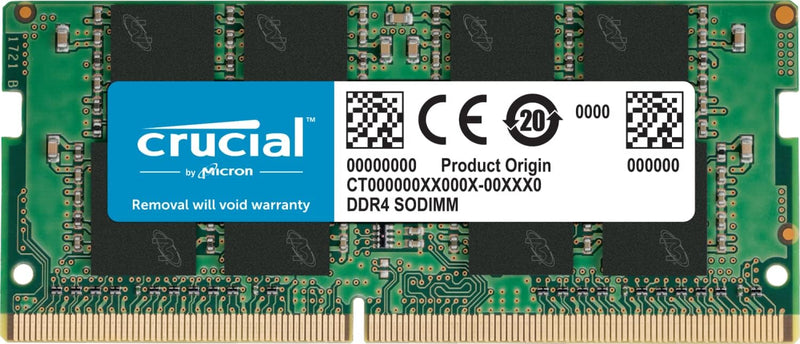
Crucial CT16G4SFRA32A 16GB DDR4 3200MHz SODIMM Laptop Memory

4.8 (68707 reviews)
16GB DDR4

A reliable 16GB DDR4 SODIMM from Crucial that runs at 3200MHz to give your laptop a straightforward performance boost.

$123.90*$146.98Save 15%
In Stock on Amazon.com
View on Amazon

*Price sourced from Amazon.com. Last updated:May 31, 2026.Price and availability are subject to change.

Affiliate Disclosure: Studio Supplies may earn a commission from qualifying purchases made through links on this page, at no additional cost to you. This helps support our editorial team.

Notice a mistake? Let Us Know

Overview

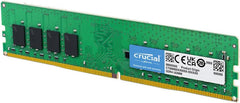
The Crucial CT16G4SFRA32A is a 16GB DDR4 SODIMM designed to upgrade or expand the memory in compatible laptops, small form factor desktops, and NUC-style systems. Operating at 3200MHz (PC4-25600), it sits at the top of the DDR4 speed range, providing maximum bandwidth for multitasking, content creation, and general productivity workloads. The module uses a standard 260-pin SODIMM form factor and runs at 1.2 volts, conforming to JEDEC specifications for broad compatibility. Its CL22 latency is standard for this speed grade and delivers balanced performance across a wide variety of applications.

As a Micron product, the Crucial CT16G4SFRA32A benefits from vertically integrated manufacturing — Micron produces the DRAM chips and assembles the modules, allowing for rigorous testing at both the component and finished-module stages. This translates to consistent reliability and a lower rate of compatibility issues compared to modules assembled from third-party chips. Crucial's System Scanner and Upgrade Selector tools provide a free, easy way to verify compatibility with your specific system before purchasing, effectively removing the risk of buying an incompatible module. Installation requires no special tools or technical knowledge — the module simply slots into an available SODIMM socket and locks into place. For laptops currently running 8GB or less, this 16GB module can provide a meaningful improvement in responsiveness, especially when running multiple browser tabs, virtual machines, or memory-intensive applications simultaneously.

Key Features

Boosts System Performance:16GB DDR4 laptop memory that operates at 3200MHz to improve multitasking and system responsiveness for smoother performance

Easy Installation: Upgrade your laptop RAM with ease—no computer skills required Follow step-by-step how-to guides available at Crucial for a smooth, worry-free installation

Compatibility Guaranteed: Ensure seamless compatibility with your laptop by using the Crucial System Scanner or Crucial Upgrade Selector—get accurate recommendations for your specific device

Trusted Micron Quality: Backed by 42 years of memory expertise, this DDR4 RAM is rigorously tested at both component and module levels, ensuring top performance and reliability for your Mac system

ECC Type = Non-ECC, Form Factor = SODIMM, Pin Count = 260-pin, PC Speed = PC4-25600, Voltage = 1.2V, Rank and Configuration = 1Rx8 or 2Rx8

Specifications

Brand
Crucial (Micron)
Model
CT16G4SFRA32A
Capacity
16GB
Type
DDR4
Speed
3200MHz (PC4-25600)
Form Factor
SODIMM (260-Pin)
CAS Latency
CL22
Voltage
1.2V
ECC
Non-ECC
Configuration
1Rx8 or 2Rx8

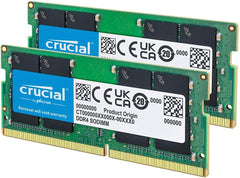
Crucial CT2K16G4SFRA32A 32GB DDR4 3200MHz SODIMM Kit — Editorial Review & Compatibility Guide

The Crucial CT2K16G4SFRA32A is Crucial's 32GB (2×16GB) DDR4 3200MHz CL22 SODIMM laptop memory kit — designed for laptop / mini-PC / NUC / SFF systems with two SODIMM slots that need a maximum-capacity upgrade. Per Crucial's official CT2K16G4SFRA32A product page, the kit uses Micron-made memory dies with Crucial's QVL-tested compatibility across 90+ laptop / NUC models, ships at 3200MHz CL22-22-22-52, and includes a limited lifetime warranty. The CT2K nomenclature means "Crucial Twin-Kit" — matched pair purchase from a single manufacturing batch.

What the CT2K16G4SFRA32A Specifically Wins

  • Crucial-built (Micron parent company) — top-tier QVL compatibility — Crucial publishes a verified compatibility list of laptops + NUCs + SFF systems where this kit is tested-to-work. Reduces "will it work?" uncertainty
  • 3200MHz at CL22 is the laptop DDR4 sweet spot — most laptop motherboards lock at 3200MHz max regardless of installed module rate; CL22 (vs CL18-20 on some kits) is the latency tier most laptops accept stably
  • Matched 2-module kit from same manufacturing batch — eliminates timing mismatch issues that can occur when buying separate modules at different times
  • Lifetime limited warranty — Crucial / Micron RMA process for laptop SODIMM is reliable
  • Wide laptop compatibility — works in Dell Latitude / Inspiron / Vostro, HP EliteBook / ProBook / Pavilion, Lenovo ThinkPad / IdeaPad / Legion, ASUS ROG / VivoBook / Zenbook, MSI Modern / Stealth / Gaming, Acer Aspire / Predator, and many more
  • Compatible with Intel NUC, Mini PC, SFF builds — Intel NUC 10/11/12 series, ASUS PN50/PN51, GMK NucBox, Beelink mini PCs
  • Backward compatible with 2400/2666MHz laptops — falls back to lower JEDEC speed automatically on older platforms
  • Single-rank or dual-rank automatic — works in either single-rank or dual-rank laptop slots

Where the CT2K16G4SFRA32A Specifically Fits

  • Laptop RAM upgrade from 8GB / 16GB to 32GB — common upgrade path for productivity / creative workflows
  • Intel NUC 10 / 11 / 12 mini PC build needing maximum 32GB
  • Mini PC home server / NAS build (ASUS PN50, Beelink, GMK NucBox)
  • Mobile workstation laptops (Dell Precision, HP ZBook, Lenovo ThinkPad P-series) needing 32GB for CAD / 3D / video work
  • Gaming laptops (ASUS ROG, Razer Blade, MSI Stealth) at 16GB needing upgrade for higher RAM-demand games
  • Mac mini / Mac (Intel-based) upgrade — Intel Mac mini 2018+ supports SODIMM DDR4. Apple Silicon Macs are NOT user-upgradeable
  • Older laptop revival — Lenovo ThinkPad T480/T490 + similar that ship at 8GB benefit substantially from 32GB upgrade
  • Virtualization on laptop — running multiple VMs / development environments needs 32GB minimum
  • Photo editing on laptop — Lightroom + Photoshop benefit from 32GB
  • Video editing on laptop — 4K editing in Premiere Pro / Final Cut Pro / DaVinci Resolve needs 32GB minimum

Honest Limits Buyers Should Know

  • Verify the laptop's MAX RAM specification first. Many laptops cap at 32GB total; some at 64GB; very few support more. Check the manufacturer's spec sheet OR Crucial's compatibility tool BEFORE purchase
  • Verify laptop has TWO SODIMM slots. Many ultrabooks (MacBook Air, XPS 13, Surface Laptop) have soldered RAM — non-upgradeable. Some laptops have one SODIMM + soldered. The CT2K is a 2-stick kit; single-slot laptops cannot use the full kit
  • Performance gain from upgrading 16GB → 32GB depends on workload. Light browsing / email users see no improvement. Heavy multi-app users (developers, content creators, virtualization) see substantial improvement. Verify the bottleneck is RAM (Activity Monitor / Task Manager memory pressure) before upgrading
  • CL22 latency is mainstream — not enthusiast. Some gaming SODIMM kits at CL20 / CL18 exist for slight performance edge. Laptop platforms rarely benefit meaningfully; the CL22 is the safe-and-stable option
  • Soldered-RAM laptops cannot use this kit AT ALL. MacBook Air / MacBook Pro M1/M2/M3/M4, Surface Laptop Studio, XPS 13/15/17 (most generations), Dell Latitude 7000 series — soldered RAM is fixed at factory. Verify socket type before buying
  • Older laptops with 1.2V DDR4 requirement. The CT2K kit operates at 1.2V (standard DDR4). Older DDR3L laptops require DDR3L SODIMM, not DDR4 — these are NOT cross-compatible
  • NOT compatible with DDR5 laptops. Current Intel 12th-gen+ laptops use DDR5 SODIMM. The CT2K is DDR4 only. For DDR5 laptops, look at CT2K8G4SFRA32A's DDR5 successor (CT2K8G5S6800SA or similar)
  • BIOS update sometimes needed. Some older laptops require BIOS update to recognize 32GB modules. Verify BIOS is current before upgrade
  • Installation requires laptop disassembly. Most laptops require removing bottom panel, locating SODIMM slots, snapping out old modules + inserting new. Manufacturers' instructions vary; consult laptop's service manual or iFixit guide

Where Buyers Should Look Elsewhere

  • DDR5 laptops → Crucial DDR5 SODIMM family (different SKU prefix)
  • Higher capacity (64GB) in supported laptops → 2× 32GB SODIMM kits (CT2K32G4SFRA32A) — verify laptop supports 64GB max
  • Single 16GB module (8GB → 24GB upgrade) → CT16G4SFRA32A single module — replaces one of two pre-installed modules
  • Single 32GB module (laptop with 1 SODIMM slot) → CT32G4SFRA32A — single high-capacity module
  • Older DDR3 / DDR3L laptops → Crucial DDR3L SODIMM family (CT * SODIMM DDR3 SKUs)
  • Premium / enthusiast laptop SODIMM → Kingston Fury Impact, G.SKILL Ripjaws DDR4 SODIMM at lower CL latency
  • Apple Silicon Mac users → cannot upgrade RAM; need to buy higher-RAM model from Apple direct

Sources & Citations

  1. Crucial, "CT2K16G4SFRA32A product page," crucial.com (accessed 2026-05-18)
  2. Crucial Compatibility Tool, "Laptop / NUC / SFF SODIMM compatibility lookup," crucial.com (accessed 2026-05-18)
  3. Tom's Hardware, "Laptop RAM upgrade guide and SODIMM compatibility," tomshardware.com (accessed 2026-05-18)
  4. iFixit, "Laptop SODIMM installation guides," ifixit.com (accessed 2026-05-18)

Last verified: 2026-05-18
How to Replace or Upgrade Laptop SODIMM RAM

SODIMM laptop RAM upgrades are among the most accessible hardware improvements available for non-soldered notebooks — no soldering, no special certifications, and the process takes under 30 minutes. The critical first step is confirming the laptop actually has upgradeable SODIMM slots rather than soldered-on LPDDR memory. According to Notebookcheck, soldered RAM is now standard in thin-and-light and premium Ultrabook categories; upgradeable slots remain common in business laptops (ThinkPad T/E/L series, Dell Latitude), gaming laptops, and budget consumer models. Check the specific laptop's service manual or the manufacturer's memory upgrade page before purchasing.

Before You Begin: Compatibility Check

Confirm: (1) the laptop has physical SODIMM slots (not soldered), (2) the memory generation it supports (DDR4 or DDR5 — never both), (3) the number of slots, and (4) the maximum capacity per slot. Crucial's online system scanner accepts a laptop model number and returns validated compatible part numbers. This step prevents the most common mistake: purchasing the wrong generation or exceeding the slot's capacity limit.

Safety

Disconnect AC power and remove any external battery before opening the laptop. For internal non-removable batteries (the majority of laptops since 2016), shut down completely and hold the power button five seconds after unplugging to clear residual capacitor charge. Touch exposed chassis metal before handling any module to discharge static. Work on a hard, flat, non-carpeted surface.

Tools Needed

  • Phillips #00 screwdriver (most common laptop bottom-panel size)
  • Plastic spudger or pry tool (to release panel clips without scratching the chassis)
  • Antistatic wrist strap (optional but recommended in low-humidity environments)

Quick Installation Summary

  1. Shut down completely, unplug power, remove external battery if present, hold power button 5 seconds.
  2. Remove bottom panel screws (Phillips #00) and use a plastic pry tool to release the retaining clips around the perimeter.
  3. Touch the chassis metal interior to discharge static before touching any components.
  4. Locate the SODIMM slot(s). If one slot is occupied and one is empty, adding a matching second stick activates dual-channel mode for improved bandwidth.
  5. To remove an existing module: press both metal retaining clips outward simultaneously — the module springs up to 30–45 degrees. Grip by the top edge and pull straight out at that angle.
  6. Align the notch on the new module's gold-contact edge with the key ridge in the slot. DDR4 and DDR5 notches are in different positions — if the notch does not align, stop and recheck the generation.
  7. Insert the module into the slot at 30–45 degrees, pressing it firmly until contacts are fully seated.
  8. Pivot the module flat toward the motherboard surface. Press down evenly until both metal retaining clips click into the notches on the module's edges — both clips must engage.
  9. Replace any thermal film, reinstall the bottom panel, reconnect power, and boot to BIOS.
  10. Verify the new capacity appears correctly in the BIOS memory screen, then boot to the OS to confirm. No XMP/EXPO profile enable is required on most consumer laptops.

Key Difference from Desktop RAM

SODIMM latches are small metal clips on the sides of the slot — not the large plastic levers found on desktop DIMM slots. Modules are inserted at a 30-to-45-degree angle, then pivoted flat until the clips snap into place. The insertion angle and the smaller clip mechanism are the two points where first-time laptop upgraders typically need to pause. Pressing the clips outward to release a module is also more subtle than the desktop equivalent — both clips must be pressed simultaneously for the module to spring free.

Troubleshooting in Brief

  • No POST / no display: Module not fully seated — reopen, press both retaining clips firmly until they click.
  • Only one module detected: Second slot not seated or incompatible part — reseat and check compatibility list.
  • BIOS shows lower speed than rated: Expected on most laptops — JEDEC default only, no overclocking supported.
  • Module does not fit: Stop — wrong DDR generation for the laptop's slots. Do not force.
  • Random crashes post-upgrade: Run Windows Memory Diagnostic or MemTest86 from USB to test module integrity.

The full step-by-step guide with detailed safety instructions, panel-removal guidance, slot identification, and extended troubleshooting is available at studio-supplies.com/blogs/guides/sodimm-laptop-ram-upgrade-guide.

Sources & Citations

  1. Crucial, "Memory Support & Installation Resources," crucial.com (accessed 2026-05-31)
  2. Crucial / Micron, "DRAM Installation Guide (PDF)," assets.micron.com (accessed 2026-05-31)
  3. Tom's Hardware, "How to Install RAM in a PC," tomshardware.com (accessed 2026-05-31)
  4. Tom's Hardware, "How to Test RAM," tomshardware.com (accessed 2026-05-31)
  5. Notebookcheck, "Soldered vs. Upgradeable RAM — What to Look For," notebookcheck.net (accessed 2026-05-31)

Last verified: 2026-05-31

Now that you've seen the details — ready to take a closer look?

View on Amazon

Similar Products

Other products from the same family that visitors often consider:

Pros & Cons

👍 Pros

  • 3200MHz speed at the DDR4 ceiling provides maximum bandwidth available in the DDR4 SODIMM standard.
  • Backed by Micron's 42 years of memory manufacturing, with component-level and module-level testing for reliability.
  • Crucial's free System Scanner tool removes guesswork from compatibility before purchase.
  • 1.2V operating voltage keeps power consumption and heat generation low in laptop environments.
  • Straightforward installation with no special tools or technical expertise required.

👎 Cons

  • Single module purchase means dual-channel operation requires buying two units separately, increasing the cost for maximum performance.
  • DDR4 technology, while still widely used, is being superseded by DDR5 in newer laptop platforms.
  • CL22 latency is standard but not the tightest available, so latency-sensitive workloads may not see peak theoretical performance.
  • No heatspreader on the module, though this is typical and rarely an issue inside a laptop enclosure.
  • Non-ECC design makes it unsuitable for systems that require error-correcting memory.

Frequently Asked Questions

Crucial offers a free System Scanner tool and an Upgrade Selector on their website that will confirm whether your specific laptop model supports this DDR4 3200MHz SODIMM before you purchase.
This is a single 16GB SODIMM module. If your laptop has two memory slots and you want 32GB total in dual-channel mode, you would need to purchase two of these modules.
No, this is a non-ECC module designed for standard consumer and business laptops. It is not intended for workstations or servers that require ECC memory.
The module operates at CL22 latency, which is the standard timing for DDR4-3200 SODIMMs.
The module runs at up to 3200MHz, but the actual operating speed depends on what your laptop's motherboard and processor support. In systems rated for a lower DDR4 speed, the module will downclock to match.