Samsung

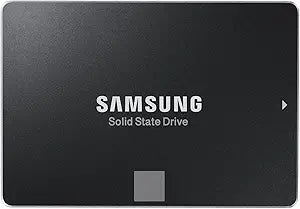
Samsung MZ-75E500B/AM 850 EVO 500GB SATA III SSD

Revitalize Your PC with Blazing Fast PerformanceThe Samsung 850 EVO SSD is the perfect upgrade to breathe new life into your aging PC. Powered by Samsung V-NAND technology, this SSD delivers incredible read and write speeds, enhancing boot-up times, application loading, and multitasking performan...

Search on Amazon
Affiliate Disclosure: Studio Supplies may earn a commission from qualifying purchases made through links on this page, at no additional cost to you. This helps support our editorial team.

Notice a mistake? Let Us Know

Overview

Revitalize Your PC with Blazing Fast Performance

The Samsung 850 EVO SSD is the perfect upgrade to breathe new life into your aging PC. Powered by Samsung V-NAND technology, this SSD delivers incredible read and write speeds, enhancing boot-up times, application loading, and multitasking performance.

Specifications:

  • Capacity: 500GB
  • Form Factor: 2.5-Inch
  • Interface: SATA III (6Gb/s)
  • NAND Type: Samsung V-NAND
  • Sequential Read Speed: Up to 540MB/s
  • Sequential Write Speed: Up to 520MB/s
  • Random Read IOPS: Up to 98K
  • Random Write IOPS: Up to 90K

Samsung 870 EVO SATA SSD (250GB-4TB) — Editorial Review & Use Cases

The Samsung 870 EVO family (MZ-77E250B/AM, MZ-77E500B/AM, MZ-77E1T0B/AM, MZ-77E2T0B/AM, MZ-77E4T0B/AM — plus the predecessor 850 EVO MZ-75E500B/AM still in active distribution) is Samsung's flagship SATA III SSD line — TLC NAND with V-NAND architecture + dedicated DRAM cache, 560 MB/s read / 530 MB/s write, 5-year warranty / 600TBW endurance (1TB model), AES-256 hardware encryption, and Samsung Magician software. Per Samsung's official 870 EVO product page, this is the de-facto SATA SSD industry benchmark — the drive most retail vendors stock for system upgrades.

What the 870 EVO Specifically Wins

  • Samsung V-NAND TLC + DRAM cache — markedly better sustained-write performance than Crucial MX500 in long-write workloads. Real-world sustained writes after SLC cache fills: 870 EVO maintains 530 MB/s; MX500 drops to 250-300 MB/s
  • 5-year warranty with 600TBW endurance on 1TB — industry-leading SATA SSD warranty + endurance combination
  • Samsung Magician software — proprietary management for firmware updates, performance benchmarking, secure-erase, over-provisioning, drive health monitoring
  • AES-256 hardware encryption (OPAL 2.0 / TCG) — drive-level encryption for secure-erase and BitLocker / FileVault acceleration
  • Wide platform compatibility — Windows 7-11, macOS native NVMe driver supports SATA SSDs, Linux 4.0+, FreeBSD, ChromeOS
  • 250GB to 4TB capacity range — broadest capacity range in mainstream SATA SSDs. 4TB is the largest SATA SSD generally available outside of premium QLC drives
  • Solid SATA III performance — full bandwidth utilization — hits SATA III's theoretical maximum (~560 MB/s) consistently
  • Samsung manufacturing + Samsung support — Samsung's TLC manufacturing is the industry standard; reliability + RMA support is excellent

Where the 870 EVO Specifically Fits

  • System boot drive on SATA-only systems — older motherboards / SATA-only laptops
  • Secondary game / media drive in newer PCs with NVMe primary
  • Linux server / NAS upgrades — Samsung's TLC + DRAM + 5-yr warranty + PLI suits 24/7 server workloads
  • Mac compatibility (older Intel Macs) — Mac Pro 2013-2018, iMac 2015-2020 SATA upgrades
  • Workstation scratch drive — Photoshop / Premiere / DaVinci Resolve scratch + cache
  • Database / VM hosting on SATA platforms
  • External USB-SATA enclosure use — quality enclosure + 870 EVO = ~560 MB/s portable workflow
  • Surveillance / DVR storage — DRAM + TLC handles continuous-write workloads
  • Server arrays / homelabs — 4TB option enables substantial array capacity at SATA prices
  • Older laptop SATA upgrade — replaces 2.5" HDD for dramatic responsiveness gain
  • BIOS-bootable as boot drive on every modern motherboard

Honest Limits Buyers Should Know

  • SATA III caps at 560 MB/s — NVMe is 6-12x faster. For workflows where SSD speed matters (large file editing, AAA game loading, video edit timeline scrubbing), NVMe (Samsung 970 EVO Plus / 990 PRO, WD SN850X) is dramatically faster. SATA SSD is the "adequate for most users" tier
  • Sustained writes throttle on extreme workloads. When SLC cache fills (10-15% of total), sustained writes drop to ~530 MB/s direct-to-TLC. Multi-hour sustained workloads see this throttling; bursts of write activity don't
  • Premium pricing vs Crucial MX500. 870 EVO 1TB ~$80-100 vs MX500 1TB ~$60-70. Premium pays for sustained-write performance + Samsung Magician + slightly better endurance. Depending on workflow, MX500 is sometimes the better $ / TB
  • 4K random IOPS lag NVMe. 870 EVO hits ~98K 4K IOPS; Samsung 990 PRO hits 1.5M. For database / VM workloads this matters; for everyday use it doesn't
  • Samsung Magician requires Windows. Mac / Linux users cannot use Samsung's management software; manual firmware updates via Windows VM or bootable USB
  • 2.5" form factor — needs SATA cable + SATA power. Desktop install needs an open SATA port + SATA power from PSU. Verify availability
  • Not for write-heavy enterprise workloads (24/7 datacenter). For enterprise tier, Samsung PM893 / PM1733 datacenter SSDs are the appropriate choice
  • NOT for M.2 NVMe slots. 870 EVO is 2.5" SATA form factor only. M.2 SATA option does not exist for this generation (Samsung dropped M.2 SATA after 860 EVO)
  • USB-SATA enclosure throughput depends on enclosure quality. Cheap UASP-disabled enclosures cap at 200-300 MB/s; quality ASMedia 2362-based enclosures hit the SATA III ceiling

Where Buyers Should Look Elsewhere

  • NVMe-class speeds → Samsung 970 EVO Plus (Gen3), 990 PRO (Gen4), 9100 PRO (Gen5)
  • Lower price (acceptable speed loss) → Crucial MX500 (~$15-20 less per TB)
  • Pure budget SATA SSD → Crucial BX500 (QLC, DRAM-less, lower endurance)
  • Higher capacity (8TB+ SATA SSD) → Samsung 870 QVO (QLC, 8TB), Crucial MX500 4TB
  • External portable SSD → Samsung T7 / T9 (USB-C, faster than SATA in enclosure)
  • Enterprise / 24/7 → Samsung PM893 / PM1735 datacenter SSDs
  • Premium SATA with MLC → Samsung 870 PRO (3D V-NAND MLC, older premium tier, harder to find)
  • Older Samsung 850 EVO buyers → 870 EVO is the direct successor; same workflow, slightly better TLC generation

Sources & Citations

  1. Samsung, "870 EVO SATA SSD product page," samsung.com (accessed 2026-05-18)
  2. Tom's Hardware, "Samsung 870 EVO review and SATA SSD comparison," tomshardware.com (accessed 2026-05-18)
  3. AnandTech, "Samsung 870 EVO benchmark coverage," anandtech.com (accessed 2026-05-18)
  4. StorageReview, "Samsung 870 EVO long-term reliability," storagereview.com (accessed 2026-05-18)

Last verified: 2026-05-18

How to Install a SATA SSD and Clone Your Existing Drive

Installing a 2.5-inch SATA SSD is the most impactful upgrade available for any computer still running a spinning hard drive. At 550 MB/s sequential throughput, a SATA SSD delivers boot times, application launches, and file operation speeds that a mechanical drive simply cannot approach. According to AnandTech's Crucial MX500 review, the MX500 and Samsung 870 EVO represent the reference-class SATA SSDs for sustained-write consistency and long-term reliability — and the total time cost, including a system clone, is under an hour for most users.

Two Installation Scenarios

This guide covers both workflows:

  • New secondary drive: Add the SATA SSD alongside the existing drive for extra fast storage. Connect SATA data + power cables, boot, initialize and format the drive in Disk Management (Windows) or Disk Utility (macOS). No cloning needed.
  • Boot drive replacement: Replace the existing hard drive or smaller SSD with this one. Requires cloning the system first — then the swap takes 5 minutes. Cloning preserves OS, applications, settings, and all data without a clean reinstall.

Safety

Shut down fully, disconnect power, flip the PSU rocker switch off on desktops. On laptops, unplug the AC adapter and hold the power button five seconds after disconnecting for internal-battery models. Touch bare metal chassis before handling any internal component. Never insert or remove SATA drives on consumer systems while powered — hot-swap is an enterprise-backplane feature not present on consumer SATA controllers.

Tools Needed

  • Phillips #1 or #2 screwdriver (desktop drive bay); Phillips #00 (laptop bottom panel)
  • SATA data cable and SATA power cable (desktops; usually included with motherboard)
  • 2.5" to 3.5" adapter bracket (if the desktop has only 3.5" bays; widely available)
  • USB-to-SATA dock or enclosure (strongly recommended for the clone workflow — connects the new SSD externally during cloning)

Clone Workflow (Boot Drive Replacement) — Summary

  1. Connect the new SSD to the running computer via a USB-to-SATA dock. No initialization needed.
  2. Download the appropriate cloning tool:
    • Crucial Storage Executive with Acronis True Image — for Crucial SSDs (MX500, BX500, etc.). Free download from Crucial's support site.
    • Samsung Data Migration — for Samsung SSDs (870 EVO, 860 EVO, 850 EVO). Free download from Samsung's consumer storage support page. Destination must be a Samsung drive.
    • Macrium Reflect Free — for any-to-any cloning regardless of brand. Free tier supports full disk clone with visual partition mapping.
  3. Run the cloning tool: select the source (internal drive) and destination (the new SSD via USB). All three tools handle partition alignment automatically. Allow the clone to complete — do not interrupt power.
  4. Optionally verify: change BIOS boot order temporarily to the USB-connected SSD and confirm the system boots from the clone before swapping.
  5. Shut down. Open the computer, swap the drives (replace old drive with new SSD in the same bay/connector). Reconnect power and boot. Update BIOS boot order if needed.

Add-Drive Workflow (Secondary Storage) — Summary

  1. Shut down, disconnect power, discharge static.
  2. Mount the SSD in a 2.5" bay (or with a 2.5"→3.5" bracket in a 3.5" bay). Connect SATA data cable to an available motherboard SATA port and SATA power cable from the PSU.
  3. Boot to OS. Open Disk Management (Windows: right-click Start) or Disk Utility (macOS). Initialize the new disk (GPT for UEFI systems), create a volume, format as NTFS or APFS, assign a drive letter or mount point.

Troubleshooting in Brief

  • Drive not detected: Reseat both SATA data and power connectors; confirm SATA port is enabled in BIOS.
  • Clone fails on bad sectors: Run SMART health check first (CrystalDiskInfo on Windows). A drive with reallocated sectors needs backup first, not cloning.
  • System boots to old drive after swap: Update BIOS boot order — move new SSD to top.
  • Partition alignment concerns: Not an issue with Acronis True Image, Samsung Data Migration, or Macrium Reflect — all align automatically.

SATA vs. NVMe — When SATA Is Still the Right Call

For systems without an M.2 slot, SATA SSD is the only modern SSD option. For mass storage in secondary bays where sequential throughput is not the bottleneck, SATA's cost-per-gigabyte advantage over NVMe is meaningful. For primary boot drives in systems with an available Gen3 or Gen4 M.2 slot, an NVMe drive is the faster choice. According to Tom's Hardware's SSD benchmark coverage, the Crucial MX500 and Samsung 870 EVO remain the top-rated 2.5-inch SATA options through mid-2026 for reliability and sustained-write consistency.

The full guide with desktop and laptop installation steps, cloning software walkthroughs, bad-sector recovery notes, and full troubleshooting is at studio-supplies.com/blogs/guides/sata-ssd-install-and-clone-guide.

Sources & Citations

  1. Crucial, "SSD Support Articles & FAQs," crucial.com (accessed 2026-05-31)
  2. Crucial, "Storage Executive (Acronis True Image cloning)," crucial.com (accessed 2026-05-31)
  3. Samsung, "Consumer Storage Tools (Samsung Data Migration)," semiconductor.samsung.com (accessed 2026-05-31)
  4. Tom's Hardware, "Best SSDs for 2026," tomshardware.com (accessed 2026-05-31)
  5. AnandTech, "The Crucial MX500 Review," anandtech.com (accessed 2026-05-31)

Last verified: 2026-05-31

Now that you've seen the details — ready to take a closer look?

Search on Amazon