Crucial

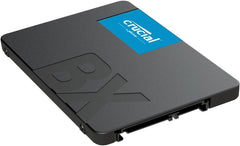
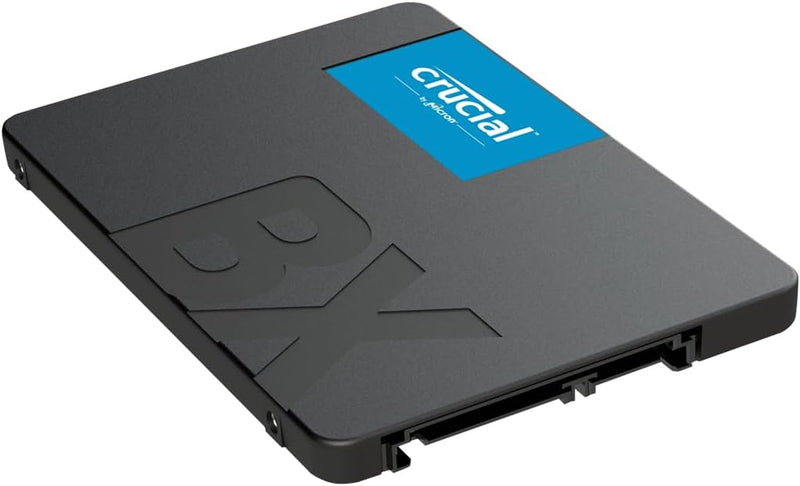
Crucial CT1000BX500SSD1 BX500 1TB 2.5" Internal SSD

4.7 (123936 reviews)

Upgrade your PC with the Crucial BX500 1TB SSD for faster boot times, quicker file loads, and up to 540MB/s read speeds.

$179.99*
In Stock on Amazon.com
View on Amazon

*Price sourced from Amazon.com. Last updated:May 30, 2026.Price and availability are subject to change.

Affiliate Disclosure: Studio Supplies may earn a commission from qualifying purchases made through links on this page, at no additional cost to you. This helps support our editorial team.

Notice a mistake? Let Us Know

Overview

The Crucial BX500 1TB is a 2.5-inch SATA solid-state drive built on Micron's 3D NAND flash technology, designed to be a straightforward upgrade path for anyone still running a mechanical hard drive. With sequential read speeds up to 540MB/s, the BX500 delivers noticeably faster boot times, quicker application launches, and more responsive day-to-day computing. Its energy-efficient design draws far less power than a spinning disk, which can translate into meaningful battery life gains for laptop users.

As a DRAM-less drive, the BX500 sits firmly in the budget tier of the SSD market, prioritizing affordability and simplicity over peak sustained write performance. For typical consumer workloads—web browsing, office applications, photo libraries, and moderate gaming—the BX500 handles the job without issue. The standard 2.5-inch SATA form factor ensures broad compatibility with older laptops and desktops, and Crucial's 3-year limited warranty provides peace of mind. If you need a cost-effective way to retire a sluggish hard drive, the BX500 1TB is a well-proven option.

Key Features

Boot up faster. Load files quicker. Improve overall system responsiveness

300% faster than a typical hard drive

Improves battery life because it’s 45x more energy efficient than a typical hard drive

Micron 3D NAND – advancing the world's memory and storage technology for 40 years

Crucial 3-year limited warranty

Specifications

Brand
Crucial
Model
CT1000BX500SSD1
Capacity
1TB
Form Factor
2.5-Inch
Interface
SATA
NAND Type
3D NAND
Sequential Read
Up to 540MB/s
Warranty
3-Year Limited

Crucial BX500 1TB vs MX500 vs P3 — Which Crucial SSD Is Right?

The Crucial BX500 (CT1000BX500SSD1) is Crucial's entry-tier 2.5-inch SATA SSD — the cheapest path from a 1 TB HDD to a 1 TB SSD on any PC with a SATA bay. Per Crucial's official BX500 product page, the drive ships in a 7 mm 2.5-inch form factor with the company's standard 3-year warranty. The BX500 is best understood by comparing it against its two natural upgrade targets — the DRAM-equipped MX500 (still SATA) and the PCIe Gen3 NVMe P3 (M.2 slot required). This module walks through the trade-offs so buyers can match the drive to the host system and workload.

The Three-Way Comparison at a Glance

Spec BX500 1TB MX500 1TB (SATA upgrade) P3 1TB (NVMe step-up)
Interface SATA III (6 Gb/s) SATA III (6 Gb/s) PCIe 3.0 x4 NVMe
Form factor 2.5" 7 mm 2.5" 7 mm or M.2 2280 (SATA) M.2 2280 NVMe
Sequential read 540 MB/s rated 560 MB/s rated 3,500 MB/s rated
Sequential write 500 MB/s rated 510 MB/s rated 3,000 MB/s rated
DRAM cache None (DRAM-less) Yes (DRAM-equipped) None (HMB via PCIe)
NAND 3D TLC/QLC (varies) 3D TLC 176-layer 3D NAND
Endurance (TBW) 120 TBW @ 1 TB 360 TBW @ 1 TB 220 TBW @ 1 TB
Warranty 3-year limited 5-year limited 5-year limited

What the BX500 Specifically Wins

The BX500 has the lowest entry price in Crucial's SATA SSD line and the broadest host-compatibility profile — any desktop with a free 2.5-inch drive bay or any laptop with a 2.5-inch SATA bay accepts it without a motherboard or BIOS check. For a buyer whose primary goal is replacing a spinning HDD on an older system (Intel 4th-gen Core, AMD A-series, anything that predates widespread M.2 NVMe adoption), the BX500 is the right tier. Per Crucial's BX500 product page, the drive ships with the Acronis True Image cloning utility, making the HDD-to-SSD migration a one-tool, one-click process.

Tom's Hardware on the DRAM-Less Trade-Off

Tom's Hardware's Crucial BX500 review documents the DRAM-less architecture's most visible limitation: sustained-write performance drops to approximately 100 MB/s once the on-drive SLC cache is exhausted. For typical desktop loads (boot drive + office apps + the occasional 50 GB game install), the SLC cache absorbs the workload and the drive runs at its rated ~500 MB/s. For sustained-write workloads (video-editing scratch, multi-hundred-GB cloud-sync downloads, large database imports), the post-cache slowdown is significant. Tom's Hardware's overall recommendation: the BX500 is a competent HDD replacement, but for a few dollars more the MX500 delivers materially better real-world performance.

When the MX500 Is the Right Step-Up

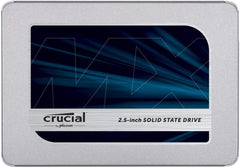
Per Crucial's MX500 product page, the MX500 carries Micron's full-featured SATA SSD package: full DRAM cache (typically 1 GB DRAM on the 1 TB model), 360 TBW endurance, AES-256 hardware encryption, Opal 2.0 management, and Crucial's 5-year limited warranty. The MX500 is the right pick when:

  • The host system has a 2.5-inch SATA bay but no M.2 NVMe slot, AND the workload is more than light desktop use
  • The user wants AES-256 hardware encryption for confidential data (not available on the BX500)
  • The user values the longer 5-year warranty + higher TBW endurance for a primary system drive
  • The price gap to the BX500 has shrunk to less than 15-20%, which is typical at the 1 TB tier

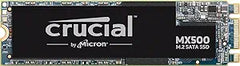
The MX500 also has an M.2 2280 SATA variant (CT1000MX500SSD4), which fits in an M.2 slot but still runs at SATA speeds — useful for laptops that only have an M.2 slot but lack NVMe support.

When the P3 Is the Right Step-Up

If the host system has a free M.2 NVMe slot (any modern desktop motherboard, any laptop from 2018 onward with M.2 PCIe support), the P3 is the higher-value choice at similar 1 TB price points. Per Crucial's P3 product page, the P3 1 TB runs PCIe 3.0 x4 NVMe with 3,500 MB/s read and 3,000 MB/s write, with 176-layer Micron 3D NAND and 1.5 million hours MTTF. Tom's Hardware's Crucial P3 review positions the P3 as a "solid secondary SSD" — meaning the P3 is well-suited as a games / storage drive on systems where a faster Gen4 NVMe handles the OS, but it is also a sound primary OS drive for users coming from any HDD or SATA SSD.

The headline takeaway: the P3's sequential bandwidth is approximately 6-7x the BX500's rated SATA III ceiling. For boot times, large file transfers, and game-load times, this difference is visible — though for routine desktop use (web, office, video playback) most users will not notice the gap once they have already upgraded from an HDD.

Honest Cons Across the Three Tiers

  • BX500 endurance is meaningfully lower. 120 TBW at 1 TB is roughly one-third of the MX500's 360 TBW for the same capacity. For most consumer use this is still many years of write cycles, but for high-write workloads (database, video scratch, NAS), the BX500 is undersized
  • BX500 lacks AES-256 hardware encryption. Per Crucial's specifications, AES-256 + Opal 2.0 are available on the MX500 but not on the BX500. Buyers needing per-drive hardware encryption for confidential content should step up to the MX500 or use host-OS-level encryption (BitLocker, FileVault) on top of the BX500
  • P3 requires an M.2 NVMe slot. Older systems (pre-2017 desktops, many sub-$400 laptops) have only SATA support and cannot accept the P3. The host system's motherboard manual is the source of truth — confirm M.2 PCIe NVMe support before buying
  • P3 is Gen3, not Gen4. The P3 is one PCIe generation behind current-mainstream Gen4 drives. For host systems with Gen4 slots, the P3 Plus (CT1000P3PSSD8) is the same product line on Gen4 with ~5,000 MB/s read for similar pricing. The P3 is appropriate when the host motherboard is Gen3-only (no Gen4 slot exists)
  • MX500 is the same SATA III ceiling as the BX500. Buyers who already have a SATA SSD and are upgrading should NOT step from BX500 to MX500 (still SATA, still ~550 MB/s ceiling) — they should step to NVMe instead

Upgrade Verdict by Buyer Profile

  • Replacing an HDD on an older PC with no M.2 NVMe slot → BX500 is the right tier. Cheapest path to SSD performance; the host bottlenecks at SATA III regardless
  • Replacing an HDD on a system with an M.2 NVMe slot → P3 instead of BX500. Same price tier, NVMe speeds make the upgrade more meaningful
  • Primary OS drive for moderate-to-heavy daily use on a SATA-only system → MX500. The DRAM cache, higher endurance, AES-256, and 5-year warranty justify the small premium over BX500
  • Adding a secondary drive for games/storage on a modern system → P3 if the motherboard has a free M.2 slot (better cost-per-GB than SATA), BX500 only if all M.2 slots are filled
  • Laptop with M.2 SATA-only slot (not NVMe) → MX500 M.2 SATA variant (CT1000MX500SSD4), since the P3 won't physically be recognized as bootable

Sources & Citations

  1. Crucial, "BX500 1TB 3D NAND SATA 2.5-inch SSD — CT1000BX500SSD1," crucial.com (accessed 2026-05-17)
  2. Crucial, "MX500 500GB 3D NAND SATA 2.5-inch SSD — CT500MX500SSD1," crucial.com (accessed 2026-05-17)
  3. Crucial, "P3 1TB PCIe M.2 2280 SSD — CT1000P3SSD8," crucial.com (accessed 2026-05-17)
  4. Tom's Hardware, "Crucial BX500 SSD Review: The DRAMless Invasion Continues," tomshardware.com (accessed 2026-05-17)
  5. Tom's Hardware, "Crucial P3 SSD Review: Solid Secondary SSD," tomshardware.com (accessed 2026-05-17)

Last verified: 2026-05-17
How to Install a SATA SSD and Clone Your Existing Drive

Installing a 2.5-inch SATA SSD is the most impactful upgrade available for any computer still running a spinning hard drive. At 550 MB/s sequential throughput, a SATA SSD delivers boot times, application launches, and file operation speeds that a mechanical drive simply cannot approach. According to AnandTech's Crucial MX500 review, the MX500 and Samsung 870 EVO represent the reference-class SATA SSDs for sustained-write consistency and long-term reliability — and the total time cost, including a system clone, is under an hour for most users.

Two Installation Scenarios

This guide covers both workflows:

  • New secondary drive: Add the SATA SSD alongside the existing drive for extra fast storage. Connect SATA data + power cables, boot, initialize and format the drive in Disk Management (Windows) or Disk Utility (macOS). No cloning needed.
  • Boot drive replacement: Replace the existing hard drive or smaller SSD with this one. Requires cloning the system first — then the swap takes 5 minutes. Cloning preserves OS, applications, settings, and all data without a clean reinstall.

Safety

Shut down fully, disconnect power, flip the PSU rocker switch off on desktops. On laptops, unplug the AC adapter and hold the power button five seconds after disconnecting for internal-battery models. Touch bare metal chassis before handling any internal component. Never insert or remove SATA drives on consumer systems while powered — hot-swap is an enterprise-backplane feature not present on consumer SATA controllers.

Tools Needed

  • Phillips #1 or #2 screwdriver (desktop drive bay); Phillips #00 (laptop bottom panel)
  • SATA data cable and SATA power cable (desktops; usually included with motherboard)
  • 2.5" to 3.5" adapter bracket (if the desktop has only 3.5" bays; widely available)
  • USB-to-SATA dock or enclosure (strongly recommended for the clone workflow — connects the new SSD externally during cloning)

Clone Workflow (Boot Drive Replacement) — Summary

  1. Connect the new SSD to the running computer via a USB-to-SATA dock. No initialization needed.
  2. Download the appropriate cloning tool:
    • Crucial Storage Executive with Acronis True Image — for Crucial SSDs (MX500, BX500, etc.). Free download from Crucial's support site.
    • Samsung Data Migration — for Samsung SSDs (870 EVO, 860 EVO, 850 EVO). Free download from Samsung's consumer storage support page. Destination must be a Samsung drive.
    • Macrium Reflect Free — for any-to-any cloning regardless of brand. Free tier supports full disk clone with visual partition mapping.
  3. Run the cloning tool: select the source (internal drive) and destination (the new SSD via USB). All three tools handle partition alignment automatically. Allow the clone to complete — do not interrupt power.
  4. Optionally verify: change BIOS boot order temporarily to the USB-connected SSD and confirm the system boots from the clone before swapping.
  5. Shut down. Open the computer, swap the drives (replace old drive with new SSD in the same bay/connector). Reconnect power and boot. Update BIOS boot order if needed.

Add-Drive Workflow (Secondary Storage) — Summary

  1. Shut down, disconnect power, discharge static.
  2. Mount the SSD in a 2.5" bay (or with a 2.5"→3.5" bracket in a 3.5" bay). Connect SATA data cable to an available motherboard SATA port and SATA power cable from the PSU.
  3. Boot to OS. Open Disk Management (Windows: right-click Start) or Disk Utility (macOS). Initialize the new disk (GPT for UEFI systems), create a volume, format as NTFS or APFS, assign a drive letter or mount point.

Troubleshooting in Brief

  • Drive not detected: Reseat both SATA data and power connectors; confirm SATA port is enabled in BIOS.
  • Clone fails on bad sectors: Run SMART health check first (CrystalDiskInfo on Windows). A drive with reallocated sectors needs backup first, not cloning.
  • System boots to old drive after swap: Update BIOS boot order — move new SSD to top.
  • Partition alignment concerns: Not an issue with Acronis True Image, Samsung Data Migration, or Macrium Reflect — all align automatically.

SATA vs. NVMe — When SATA Is Still the Right Call

For systems without an M.2 slot, SATA SSD is the only modern SSD option. For mass storage in secondary bays where sequential throughput is not the bottleneck, SATA's cost-per-gigabyte advantage over NVMe is meaningful. For primary boot drives in systems with an available Gen3 or Gen4 M.2 slot, an NVMe drive is the faster choice. According to Tom's Hardware's SSD benchmark coverage, the Crucial MX500 and Samsung 870 EVO remain the top-rated 2.5-inch SATA options through mid-2026 for reliability and sustained-write consistency.

The full guide with desktop and laptop installation steps, cloning software walkthroughs, bad-sector recovery notes, and full troubleshooting is at studio-supplies.com/blogs/guides/sata-ssd-install-and-clone-guide.

Sources & Citations

  1. Crucial, "SSD Support Articles & FAQs," crucial.com (accessed 2026-05-31)
  2. Crucial, "Storage Executive (Acronis True Image cloning)," crucial.com (accessed 2026-05-31)
  3. Samsung, "Consumer Storage Tools (Samsung Data Migration)," semiconductor.samsung.com (accessed 2026-05-31)
  4. Tom's Hardware, "Best SSDs for 2026," tomshardware.com (accessed 2026-05-31)
  5. AnandTech, "The Crucial MX500 Review," anandtech.com (accessed 2026-05-31)

Last verified: 2026-05-31

Now that you've seen the details — ready to take a closer look?

View on Amazon

Similar Products

Other products from the same family that visitors often consider:

Pros & Cons

👍 Pros

  • Sequential read speeds up to 540MB/s make boot and load times dramatically faster than a hard drive
  • Sequential read speeds up to 540MB/s, roughly 300% faster than a traditional hard drive
  • Uses 45 times less energy than a typical HDD, which can extend laptop battery life
  • 1TB capacity provides ample storage for an OS drive plus applications and files
  • Very energy efficient at 45x less power draw than a typical HDD, which can extend laptop battery life
  • Built on proven Micron 3D NAND technology for reliable long-term storage
  • Simple drop-in 2.5-inch form factor fits most laptops and desktops without modification
  • No moving parts means silent operation and better resistance to shock and vibration
  • Backed by Micron's 3D NAND technology and a 3-year limited warranty
  • 1TB capacity offers ample room for an operating system, applications, and media files

👎 Cons

  • Lacks a DRAM cache, which can result in slower sustained write performance under heavy workloads
  • No DRAM cache, so sustained random write performance can slow under heavy workloads
  • SATA interface limits maximum throughput compared to NVMe drives
  • Sequential write speeds are lower than competing SSDs in the same price range
  • Not available in M.2 or NVMe form factors, limiting it to SATA-equipped systems
  • Write speeds are not listed as prominently and are lower than the read speeds
  • Does not include a mounting bracket for 3.5-inch desktop bays
  • No built-in hardware encryption support

Frequently Asked Questions

The BX500 uses a standard 2.5-inch SATA III form factor, so it fits most laptops and desktops that accept a 2.5-inch drive. Check that your system has a SATA connector available.
The BX500 uses a standard SATA III (6Gb/s) interface in a 2.5-inch form factor, making it compatible with most laptops and desktops that accept a 2.5-inch drive.
Crucial offers a free downloadable edition of Acronis True Image for Crucial, which lets you clone your existing drive to the BX500 so you can migrate your operating system and files without a fresh install.
Yes, Crucial provides free access to Acronis True Image for Crucial, which lets you clone your existing drive to the BX500 so you can migrate your OS and files without a fresh install.
Crucial rates the BX500 1TB for up to 360TB Total Bytes Written (TBW), which translates to years of typical consumer use. It also comes with a 3-year limited warranty.
Crucial backs the BX500 with a 3-year limited warranty.
Yes, but you will need a 2.5-inch to 3.5-inch adapter bracket (sold separately) to mount the BX500 in a standard desktop drive bay.
No, the BX500 is a DRAM-less SSD. It uses Micron 3D NAND and a SLC write cache to keep costs low while still delivering significantly faster performance than a mechanical hard drive.
Yes, you can place the BX500 in any compatible 2.5-inch USB-to-SATA enclosure to use it as a portable external SSD.
No, the BX500 is a DRAM-less SSD. It relies on Micron's 3D NAND and SLC caching for performance, which keeps the price low while still delivering a major speed improvement over a traditional hard drive.