
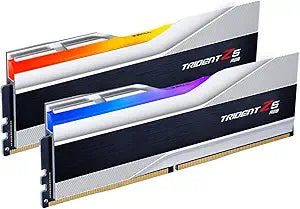
How to Upgrade Desktop RAM — DDR4 & DDR5
Upgrading desktop RAM is one of the most accessible hardware improvements available. No specialized tools are required, the process takes under 30 minutes, and the performance benefit is immediate for multitasking, content creation, and gaming workloads. The installation procedure is identical for DDR4 and DDR5 modules at the physical level — the key difference is the notch position on the module edge, which physically prevents cross-generation insertion.
Before You Begin: Compatibility Check
Confirm the memory type the motherboard supports (DDR4 or DDR5 — boards support only one), the maximum capacity per slot and total, and the validated speeds listed in the board's QVL. Crucial's online scanner and the motherboard manufacturer's QVL page are the most reliable sources for this information. Installing a kit rated above the board's maximum supported speed is safe — the module defaults to JEDEC baseline (DDR4-3200 or DDR5-4800) and requires an XMP or EXPO profile enable in BIOS to unlock rated speed.
Safety
Electrostatic discharge is the primary physical risk. Before handling any module, touch the bare metal interior of the case chassis with power unplugged to discharge any static charge. Work on a hard, non-carpeted surface. Most builders skip a wrist strap for a quick RAM swap, but one is recommended in low-humidity or carpeted environments.
Quick Installation Summary
- Shut down completely, disconnect power, and discharge residual capacitor charge by pressing the power button once after unplugging.
- Remove the side panel and touch the case chassis interior to discharge static.
- Locate the DIMM slots — consult the board manual for the correct dual-channel pair (typically A2 and B2 on a four-slot board).
- Press the latch(es) open, then insert the new module with the notch aligned to the key ridge in the slot.
- Press down firmly with both thumbs until both latches click audibly into the module's side notches.
- Replace the panel, reconnect power, and boot to BIOS to verify the new capacity is detected.
- Enable XMP (Intel) or EXPO (AMD AM5) in BIOS to unlock the kit's rated speed — without this step the memory runs at JEDEC baseline only.
DDR4 vs. DDR5 — Platform Context
DDR4 and DDR5 modules are not interchangeable between platforms. DDR4 is standard on Intel LGA1700 DDR4 boards (12th–14th Gen) and AMD AM4 (Ryzen 3000–5000). DDR5 is the sole option on Intel LGA1851 (Core Ultra 200 series) and AMD AM5 (Ryzen 7000/9000 series), as well as some LGA1700 boards that offer a DDR5 variant. For new platform builds as of mid-2026, DDR5-5600 or DDR5-6000 32GB kits represent the best price-to-performance range, according to Tom's Hardware's 2026 RAM buying guide. For existing DDR4 systems, properly timed DDR4-3200 to DDR4-3600 kits deliver the full bandwidth the platform supports.
Troubleshooting in Brief
- No POST / no display: Module not fully seated — reseat until both latches click.
- BIOS shows less RAM than installed: One module not detected — reseat and confirm correct slot pair.
- Instability after XMP/EXPO enabled: Try a lower speed profile or disable XMP/EXPO to confirm the base configuration is stable.
- Module does not fit: Stop — wrong DDR generation for the board. Do not force.
The full step-by-step guide with detailed safety instructions, dual-channel slot guidance, and extended troubleshooting is available at studio-supplies.com/blogs/guides/desktop-ram-upgrade-guide-ddr4-ddr5.
Sources & Citations
- Tom's Hardware, "How to Install RAM in a PC," tomshardware.com (accessed 2026-05-30)
- Tom's Hardware, "How to Enable XMP to Improve RAM Speeds," tomshardware.com (accessed 2026-05-30)
- Tom's Hardware, "Best RAM for Gaming 2026," tomshardware.com (accessed 2026-05-30)
- Crucial, "Memory Support & Installation Resources," crucial.com (accessed 2026-05-30)
- Crucial / Micron, "DRAM Installation Guide (PDF)," assets.micron.com (accessed 2026-05-30)
Last verified: 2026-05-30


