How to Upgrade Your GPU: PSU Sizing, 12VHPWR, Clearance, and Driver Migration
A GPU upgrade delivers the highest single-component gaming performance return, but it carries more prerequisites than any other component swap. Before purchasing a new GPU, four checks must pass: PSU wattage headroom, PSU connector compatibility (including 12VHPWR handling), physical case clearance, and driver migration procedure. According to AnandTech's RTX 4070 review, the Ada Lovelace architecture delivered a substantial improvement in performance-per-watt over Ampere, making the 4070 tier one of the most efficient mainstream upgrades in recent GPU history. TechPowerUp's RX 7900 XTX review confirmed AMD's RDNA 3 architecture delivered competitive rasterization performance against the RTX 4080 at a lower price point — two reference points that frame the 2026 GPU upgrade landscape.
Prerequisite 1: PSU Wattage
GPU TDP ratings understate actual peak power demand. Modern high-performance GPUs exhibit transient power spikes that can briefly exceed TDP by 30–50% or more. NVIDIA's official system PSU recommendations call for 650W for RTX 4070 builds, 750W for RTX 4080, and 850W for RTX 4090. Calculate: CPU TDP + GPU TDP + 150–200W headroom for transients and future additions. An undersized PSU may boot but will produce crashes, artifacting, or throttling under sustained GPU load — symptoms that mimic driver bugs. For the RTX 4070 tier, a 650W 80+ Bronze or better PSU from a reputable manufacturer is the floor.
Prerequisite 2: PSU Connectors and 12VHPWR Safety
RTX 4000-series GPUs use a 16-pin 12VHPWR or 12V-2×6 connector rated for up to 600W through one cable. Most PSUs built before 2023 include a multi-8-pin-to-12VHPWR adapter in the GPU box rather than a native 12VHPWR cable. The 2022 RTX 4090 connector failures were attributed by TechPowerUp and others to inadequately seated connectors — the connector inserted at an angle or without full positive engagement caused resistive heating. Correct practice: seat the 12VHPWR or 12V-2×6 connector fully until no gap is visible between the connector body and the GPU shroud. Route the cable with a gentle curve after the connector exit — no tight 90-degree bends. When using a multi-8-pin adapter, plug each 8-pin end into a separate PSU output cable, not daisy-chained connectors from the same strand.
Prerequisite 3: Physical Clearance
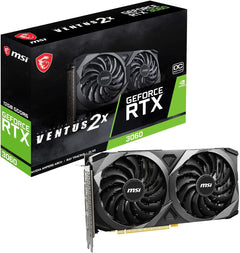
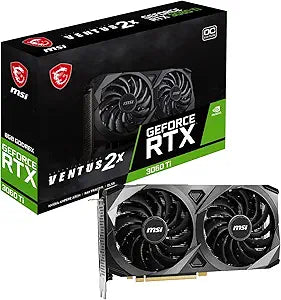
Many RTX 4080 and 4090 cards exceed 340mm in length. Before purchasing, measure the usable GPU length inside the case with the existing card removed — from the front drive bay or panel to the PCIe slot. Check the GPU's listed dimensions and add 10mm margin for cable routing. Also verify slot width: 3-slot GPUs require three consecutive expansion slot covers available. Height clearance matters on mATX boards with components near the x16 slot.
Prerequisite 4: PCIe Generation
The performance delta between PCIe 3.0 x16 and 4.0 x16 for gaming GPUs is typically under 3–5% in gaming workloads per TechPowerUp's RTX 4070 review — not a meaningful bottleneck. Verify whether any occupied M.2 slots share lanes with the primary x16 slot (common on B550 and some older boards), which can drop the slot from x16 to x8 mode.
Safety
Fully power off and unplug the PSU cable before any PCIe card swap. No hot-swap on consumer PCIe slots. Discharge by touching the bare chassis with the PSU switch off and cable connected for grounding.
Tools Needed
- Phillips #1 screwdriver (GPU bracket screws in case expansion panel)
- Anti-static surface or wrist strap (strongly recommended — GPU contains expensive GDDR6X memory)
Installation Steps
- Uninstall old drivers with DDU in Safe Mode first — download Display Driver Uninstaller (DDU) from Guru3D. Reboot to Safe Mode, run DDU, select "Clean and restart." This removes all traces of the old driver stack. Critical for cross-vendor swaps (NVIDIA↔AMD); strongly recommended for same-vendor upgrades. The system will boot in generic low-resolution mode after DDU — this is correct.
- Shut down and unplug PSU — shut down through the OS after DDU restarts. Unplug the PSU cable. Flip the PSU rocker off. Press the power button once to discharge capacitors.
- Disconnect old GPU power cables — press the retention tab on 12VHPWR connectors while pulling straight out. Disconnect all 8-pin PCIe cables.
- Release PCIe retention clip and unscrew GPU bracket — the retention clip is at the far end of the x16 slot. Unscrew the one or two bracket screws from the case expansion panel. Rock the card gently lengthwise and pull straight up.
- Install the new GPU — remove expansion slot cover plates for the required number of slots (typically 2–3). Align the PCIe x16 edge with the slot and the bracket with the case opening. Press down evenly until the retention clip clicks. Screw the bracket to the case.
- Connect power cables — fully seat 12VHPWR — for 12VHPWR or 12V-2×6: insert fully until no gap is visible between connector body and GPU shroud. Route cable with a gentle curve — no tight bends. For multi-8-pin adapters: each 8-pin end on a separate PSU cable strand.
- Reinstall side panel and reconnect PSU — replace panel, plug in PSU cable, flip rocker switch on.
- Boot and confirm display from GPU output — connect monitor to the GPU's HDMI or DisplayPort output, not the motherboard output. If no display, switch to a different GPU port or enter BIOS to set PCIe as primary display device.
- Install new GPU drivers — for NVIDIA: download Game Ready Driver from nvidia.com, run with "Clean installation." For AMD: download Adrenalin Software from amd.com. Reboot after installation.
- Verify driver and display — confirm native resolution in Display Settings. Check Device Manager for the GPU model under Display Adapters without warning flags.
Troubleshooting in Brief
- No display after install: Monitor connected to motherboard output, not GPU. Switch cable to GPU port.
- 12VHPWR gap visible after install: Reseat fully — power down immediately if a gap is present.
- Driver install fails: Run DDU in Safe Mode again to clear residual entries, then reinstall from manufacturer download.
- Crashes under GPU load: PSU likely undersized, or power cables not fully seated. Verify PSU wattage headroom; check all PCIe power connections.
- Fans full speed briefly on cold boot: Normal — GPU thermal controller initializes after power-on.
The full guide with PSU wattage calculations, 12VHPWR connector safety detail, case measurement procedure, DDU walkthrough, and complete troubleshooting is at studio-supplies.com/blogs/guides/gpu-upgrade-install-guide.
Sources & Citations
- NVIDIA, "GeForce RTX 40 Series Graphics Cards," nvidia.com (accessed 2026-05-31)
- NVIDIA, "NVIDIA Driver Downloads," nvidia.com (accessed 2026-05-31)
- AMD, "AMD Support & Drivers," amd.com (accessed 2026-05-31)
- Guru3D, "Display Driver Uninstaller (DDU) Download," guru3d.com (accessed 2026-05-31)
- AnandTech, "The NVIDIA GeForce RTX 4070 Review," anandtech.com (accessed 2026-05-31)
- TechPowerUp, "NVIDIA GeForce RTX 4070 Founders Edition Review," techpowerup.com (accessed 2026-05-31)
- TechPowerUp, "AMD Radeon RX 7900 XTX Review," techpowerup.com (accessed 2026-05-31)
- Tom's Hardware, "GPU Hierarchy — Best Graphics Cards Ranked," tomshardware.com (accessed 2026-05-31)
Last verified: 2026-05-31